Showing posts with label Aruba. Show all posts

Thursday, 14 May 2020

Transmit AP Name in Aruba Instant

Having the Wi-Fi infrastructure transmit the AP name is one of those useful things that not everyone knows about. It means that a network engineer can see the system assigned name rather than a BSSID saving valuable troubleshooting time. Each vendor does it in a slightly different, proprietary way that means that it is usually only professional tools that will decode them. Until recently Aruba Instant deployments didn't have this functionality but this changed with release 8.4.0.0. Interestingly there was no mention of this addition in the release notes, however, the CLI reference guide does describe it.

All that is required is to add the command advertise-ap-name to each SSID profile required. Here is an example:

CORP-AP01# conf t
We now support CLI commit model, please type "commit apply" for configuration to take effect.
CORP-AP01 (config) # wlan ssid-profile AyeFi_CORP
CORP-AP01 (SSID Profile "AyeFi_CORP") # advertise-ap-name
CORP-AP01 (SSID Profile "AyeFi_CORP") # end
CORP-AP01# commit apply
committing configuration...
configuration committed.

As a consequence the APs will transmit their name as a VSA in the beacon frame as shown below:

Thursday, 12 March 2020

Aruba Clearpass Custom Analysis & Trending

Our large UK university campus uses Aruba Clearpass for authentication. We had a situation recently when a large number of wireless authentications were failing at certain times of the day. One of the great features of Clearpass is the Access Tracker that lists all the authentication attempts with lots of useful information. It is found on Policy Manager - Monitoring - Live Monitoring - Access Tracker

I could see in the policy manager access tracker that at the times when the issue was occurring that many of the connections were failing with a timeout. One of the very useful parts of the access tracker are its filters and I was able to filter for "Login Status equals TIMEOUT". However, what I really wanted to see was the number of login timeouts vs successful authentications graphed over time to get an understanding of the scale of the problem and its frequency.

Policy Manager has a graphing function to be found at: Policy Manager - Monitoring - Live Monitoring - Analysis & Trending. An example of the supplied filters is this, simply showing total requests, successes and failures:


However, in my case I needed to see the authentication timeouts and not just all the failures. What I needed was a data filter which are found at Policy Manager - Monitoring - Data Filters. These can filter on any of the parameters present in the access tracker and can use Boolean logic to construct more complex queries. The query can then be used to build a graph in the Analysis & Trending module.

My first filter was quite simple just looking for RADIUS authentication where the Login-Status EQUALS TIMEOUT:

and another that showed the timeouts from a group of Meru controllers by filtering on the NAS IP address of the wireless controller(s):
Then applying these filters in Analysis & Trending provided the graphical representation required:

Wednesday, 4 March 2020

Aruba AOS8 Cluster Grouping

On a new job working with an existing Aruba AOS 8 deployment I came across a cluster of four 7240XM controllers clustered as a single cluster but with the controllers configured with two different group IDs. This wasn't a parameter I was familiar with and the documentation wasn't much help either. In the online user guide here this is the explanation

group <group_id> The value of the parameter is an integer and the range is 1-12. The value 0 is the unset value if you do not want to group the managed devices

This explanation from David Westcott explains it perfectly here. "The use is to assign controllers in the same physical location the same group ID. Then the cluster places User anchor controller (UAC) and Standby User anchor controller (S-UAC) for each client in different groups so that if a whole physical location goes offline then the standby connections are already established."

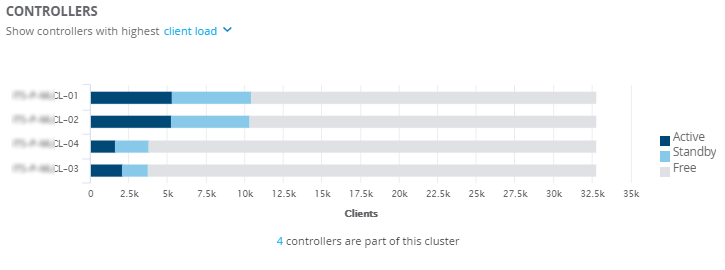
This is confirmed on our cluster. For this cluster controllers xxCL-01 and xxCL-03 are in group 1 whilst controllers xxCL-02 and xxCL-04 are in group 2. The last octet of the IP address corresponds to the controller name.

lc-cluster group-profile uni-cluster
  controller 172.17.101.1 priority 128 mcast-vlan 0 vrrp-ip 0.0.0.0 vrrp-vlan 0 group 1
  controller 172.17.101.2 priority 128 mcast-vlan 0 vrrp-ip 0.0.0.0 vrrp-vlan 0 group 2
  controller 172.17.101.3 priority 128 mcast-vlan 0 vrrp-ip 0.0.0.0 vrrp-vlan 0 group 1
  controller 172.17.101.4 priority 128 mcast-vlan 0 vrrp-ip 0.0.0.0 vrrp-vlan 0 group 2

Looking at the cluster from the MM GUI: Managed Network - Infrastructure - Clusters it shows that clients active on xxCL-01 are standby on xxCL-02 and vice versa. Clients active on xxCL-03 are standby on xxCL-04 and vice versa.


Thursday, 27 February 2020

Aruba UXI Packet Capture Issue

One of the key features I hoped to make use of in the Aruba UXI sensor (formerly Cape Networks) is remote packet capture. This is performed on the sensor status page as shown below:

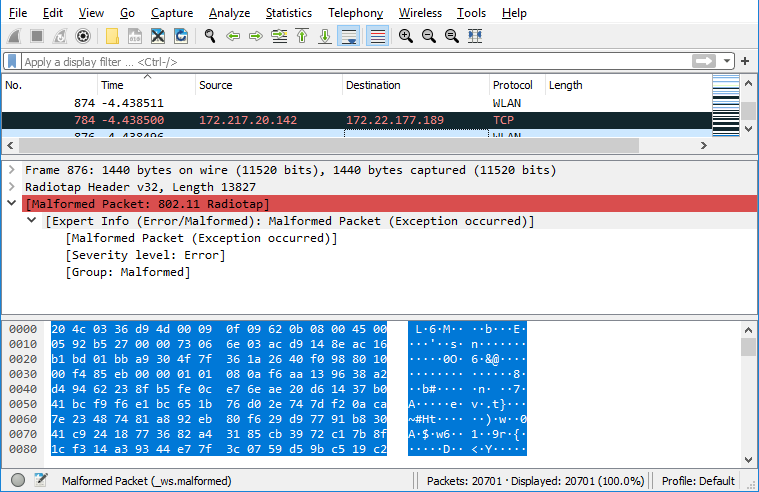
The problem is that it doesn't produce a file that is readable in Wireshark, with most of the 802.11 frames marked as malformed.
After raising this issue with Aruba support they came back with a response after over two weeks to say that this is a bug:
"The sensor do not capture the full packet off the wire, the snap length is 2048 bytes at the moment including the Radiotap headers, which means that sometimes wireshark won't be able to fully parse the packets.
The backend team is still working on the this."
Considering that the last update to the UXI sensor was on Aug 2019 it is a bit concerning that they either haven't noticed this issue or that they can't fix it. I can't help getting the feeling that the development of this product is on the Aruba back burner now.

Wednesday, 26 February 2020

Aruba Airwave - Correctly Scaling Floor Plans for VisualRF

In a previous post about setting the origin correctly in an VisualRF floor plan I mentioned scaling the floor plan correctly and thought I should explain how I obtain this information. Now obviously the best practise is to take your measuring tape or laser range finder and measure the actual building (remembering to take a measurement across the longest possible distance to minimise errors), however, this is not always possible. For new builds and remote sites you can get the size information from a correctly scaled PDF file.
The following instructions are for Adobe Acrobat Reader DC but equivalent functions may be available with other tools.
  1. Open the file in Acrobat Reader DC
  2. Determine the scale of the drawing, in this case there is a information box shown in the lower right corner of the drawing stating that the scale is 1:100
  3. Select Tools - Measure
  4. Click on "Measuring Tool" in the menu bar - then right click on the image and select "Change Scale Ratio and Precision" to set the scale
  5. In the window that appears set the scale according that of the drawing, in this case 1:100 i.e. 1cm on the drawing is 1m on the ground
  6. Then click on two points diagonally opposite on the plan to measure the size
  7. This length can then be used in VisualRF to set the size of a building floor plan

Monday, 17 February 2020

Manual Client Blacklisting in an Aruba AOS 8 Cluster

Manually blacklisting a client in an Aruba AOS 8 cluster involves a somewhat un-obvious configuration. Normally configuration for a cluster managed by a mobility master is done at the mobility master and then pushed out to the relevant controllers based on the level of the hierarchy. In addition changes are usually  done in configuration mode on the mobility master. However, when blacklisting a client device this is done on an individual controller CLI in enable mode.

To blacklist a client, login to any controller in the cluster:

(MY-CONTROLLER-01) #stm add-blacklist-client 8CF5A3CCD483

This will push this config out to all controllers in the cluster so it doesn't appear to matter which controller this command is executed on.

This is the corresponding user trace when a client is blacklisted:
 Feb 10 12:07:01 :501103:  <3677> <WARN> |stm|  Blacklist add: 8c:f5:a3:cc:d4:83: Reason: user-defined
 Feb 10 12:07:01 :501000:  <3677> <DBUG> |stm|  Station 8c:f5:a3:cc:d4:83: Clearing state
 Feb 10 12:07:01 :522004:  <5025> <DBUG> |authmgr|  auth_cluster_ipuser_dormant_entry_delete:  ip(172.21.193.56) entry for mac 8c:f5:a3:cc:d4:83 flags 0xb
 Feb 10 12:07:01 :522004:  <5025> <DBUG> |authmgr|  AUTH GSM Macuser  Dormant Del (8c:f5:a3:cc:d4:83)
 Feb 10 12:07:01 :522004:  <5025> <DBUG> |authmgr|  ac_macuser_dormant_entry_delete: deleted dormant mac(8c:f5:a3:cc:d4:83) entry

To check which clients are currently blacklisted:

 (MY-CONTROLLER-01) #show ap blacklist-clients

 Blacklisted Clients
 -------------------
 STA                reason        block-time(sec)  remaining time(sec)
 ---                ------        ---------------  -------------------
 8c:f5:a3:cc:d4:83  user-defined  245              3355
 5c:c5:d4:de:8e:10  user-defined  2915             685
 34:02:86:b7:3d:42  user-defined  925              2675

To remove a single client from the blacklist execute the following command:
 stm remove-blacklist-client 8c:f5:a3:cc:d4:83
To remove all clients from the blacklist execute the following command:
 stm purge-blacklist-client

NB. The purge and remove commands, unlike add are not pushed out to the other controllers in the cluster so need to be run on all controllers in the cluster.

Friday, 17 January 2020

Captive Portal Testing on Aruba UXI

The Aruba UXI (formerly Cape Networks) sensor is a useful piece of kit to help understand the status of a wireless network remotely and from the perspective of an end user. We have it set to test connectivity to our 802.1X Wi-Fi using some different credentials to check the function of different roles. However, one network that was missing was our guest network.
The guest network, in common with many UK universities is provided by the Cloud from Sky and is protected by a captive portal. I had always assumed that this would be a blocker for the UXI sensor but it turns out that they have a way to around this. Once an a guest account has been created then using a chrome plugin called "Aruba Recorder" if we perform the manual login and provide the output to Cape Networks support they can add this to the sensor and it will perform the user login. The full details can be found here.
Unfortunately at this time it isn't possible for the user to upload the recorder output but requires the Cape support to do this. Hopefully this won't always be the case.

Tuesday, 14 January 2020

Aruba AP-105 Beacon Stall

In ArubaOS 6.5.4.12 a problem appeared where some AP-105 stopped transmitting beacons on their 2.4GHz radios. From the status displayed they appeared to be working but no signal was detected at 2.4GHz. We discovered this during a RF survey and also when investigating a user complaint. 
Unfortunately both these locations were remote to our usual office so in order to find a more local instance I searched the controller and Airwave looking for APs that hadn't had any clients on their 2.4GHz radio for several days. From this a local visit and a packet capture next to the affected AP would show if the AP was in fact transmitting. From this I found an AP-105 in my building that was affected. A packet capture of the channel used by the AP showed that no beacons were being transmitted by this AP and only traffic from nearby APs was seen.
The issue could be resolved by rebooting the AP but could occur again or on different APs after some days. Aruba TAC indicated that the issue was a beacon stall where the transmitter locked up and stopped transmitting beacons. Checking the stats on the controller could show whether an AP was affected by executing this command twice and checking that the count increased:

show ap debug radio-stats ap-name "<AP-name>" radio 1 advanced | include beacon

To automate this Aruba provided an AirRecorder script that can automate CLI commands. It checked every AP to find the ones where the beacon count wasn't increasing. Therefore whilst waiting for a fix from Aruba we could locate the affected APs and reboot them.
One interesting subsequent failure mode was that after a while affected APs might start transmitting beacons but they wouldn't accept associations as they indicated they were unable to handle any more stations.
We took a unofficial (C) build that fixed the issue based on 6.5.4.12 and then it was resolved in 6.5.4.13

Wednesday, 18 December 2019

Aruba Airwave - Configuring Origin when adding Floorplan to VisualRF


Airwave is the network management platform from Aruba for managing their (and other vendors) wired and wireless equipment. One key part are the live floor plans accessed via the VisualRF menu. These show when APs are up or down, the clients connected to them and can also show heat maps and AP relationships.
When adding floor plans and setting up buildings in Aruba Airwave, there are several important factors to ensure are correct. One is that the scale of the plan is correctly set and the second is the location of the origin. The origin controls the alignment of floors so that VisualRF knows where floors above and below are located relative to one another. Without this the client location will not be correct and the heat maps inaccurate.
In these screen captures the origin is in the default location at the top left of the imported floor plans of the ground and first floors. However the amount of white space around each plan is different.

By enabling the heat map showing the signal from APs on the floor above the misalignment between floors is clear as the APs are offset to the left of their real locations.
To correct this unlock the floor plan by clicking on the padlock and then drag the origin marker to a point that is common to both floors, an elevator is ideal but a common corner of a building can also be used. Now looking at the same heat map the signal from the APs above are correctly located.

Monday, 16 December 2019

Aruba Wireless and 5.8GHz Band C in UK

On 13 July 2017 Ofcom announced that from 7th August 2017 the regulations governing the 5.8GHz Band C in the UK would be changed to allow Wi-Fi use. This meant that an additional 125MHz of spectrum would now be available without requiring a license.
The decision is available here.

In summary the change specified in IR2030/1/23 is:
  • 5 new 20Mhz Channels: 149, 153, 157, 161 and 165
  • 200mW (23dBm) max EIRP
  • Requires DFS and TPC
  • Can be used indoor and outdoor
On Aruba controllers and Instant APs the channels and powers are controlled by the DRT (Downloadable Regulatory Table) and it was with some expectation that following the Ofcom ruling Aruba would now allow these. And lo and behold channels 149-161 are now allowed.

7c:57:3c:xx:xx:xx# show ap allowed-channels

Allowed Channels for AP Type 303 Country Code GB
------------------------------------------------
PHY Type                   Allowed Channels
--------                   ----------------
802.11g (indoor)           1 2 3 4 5 6 7 8 9 10 11 12 13
802.11a (indoor)           36 40 44 48 52 56 60 64 100 104 108 112 116 120 124 128 132 136 140 149 153 157 161 165
802.11g (outdoor)          1 2 3 4 5 6 7 8 9 10 11 12 13
802.11a (outdoor)          100 104 108 112 116 120 124 128 132 136 140 149 153 157 161 165
802.11g 40MHz (indoor)     1-5 2-6 3-7 4-8 5-9 6-10 7-11 8-12 9-13
802.11a 40MHz (indoor)     36-40 44-48 52-56 60-64 100-104 108-112 116-120 124-128 132-136 149-153 157-161
802.11g 40MHz (outdoor)    1-5 2-6 3-7 4-8 5-9 6-10 7-11 8-12 9-13
802.11a 40MHz (outdoor)    100-104 108-112 116-120 124-128 132-136 149-153 157-161
802.11a 80MHz (indoor)     36-48 52-64 100-112 116-128 149-161
802.11a 80MHz (outdoor)    100-112 116-128 149-161
802.11a 160MHz (indoor)    None
802.11a 160MHz (outdoor)   None
802.11a (DFS)              52 56 60 64 100 104 108 112 116 120 124 128 132 136 140

However, on closer inspection of the last line (802.11a (DFS)) it seems that channels 149-161 are not listed. Also the max allowed EIRP is not 23dBm as expected (I don't know why the command says it has been deprecated as it still shows the information and I couldn't find this elsewhere):

7c:57:3c:xx:xx:xx# show ap allowed-max-EIRP
Warning: This command has been deprecated.

Max EIRP setting for AP-303
---------------------------
Channel ... 144  149   153   157   161   165
------- ... ---  ---   ---   ---   ---   ---
b       ... *    *     *     *     *     *
g/a     ... *    13.4  13.4  13.6  13.5  13.5
HT 20   ... *    13.4  13.4  13.6  13.5  13.5
HT 40   ... *    13.5  13.5  13.6  13.6  *
VHT 80  ... *    13.4  13.4  13.4  13.4  *
Note: Output truncated to for easier display

Following discussions with Aruba support it appears that rather than implement DFS and TPC in Band C they have chosen to cap the EIRP to 14dBm.

The relevent part of the regulation IR2030 is IR2030/8/3 for "Non-specific short-range devices" that permits a maximum EIRP of 25mW (14dBm) and for which interference mitigation techniques are not required.

This is the same as the harmonized ETSI specification of 25mW max EIRP as given here.

It will have to be seen whether the benefit of not requiring DFS and TPC is worth the reduction in available transmit power. In my typical campus deployment we use EIRP upto 18dBm and 15dBm for dense deployments letting ARM take care of channel assignment and power setting. Therefore it is conceivable that for certain circumstances 14dBm could be sufficient. 

Friday, 6 December 2019

Aruba Instant default password.

After upgrading an Aruba Instant AP to 8.6.0.0 from 8.3.0.0 and factory resetting I discovered that the previous default management credentials of admin, admin no longer worked. After some head-scratching I discovered this change from the the 8.5.0.0 quick start guide:


So Aruba have changed the default password to be the serial number rather than a generic string. This should be a step forward for the cases where we find unconfigured APs transmitting their default SetMeUp-xx:xx:xx SSID, for these unconfigured cases the curious or hackers with bad intentions will have to have physical access to the AP to discover the serial number.

Emoji Wi-Fi on Cisco C9800 Catalyst

A nice feature for some situations is to use an Emoji SSID instead of a plain text SSID. Many Wi-Fi controllers support this by allowing cut...